en


The KK8 daily check in is a small credit you collect yourself from the Check In tab in the bottom bar. The reward grows each day you claim, from RM2 up to RM200, but each day only opens once your Main Wallet turnover for that day reaches a set figure. That turnover gate decides whether a day pays, so this guide covers the ladder, the requirement, the claim steps and the reasons the button stays grey.
The ladder runs for ten steps and then holds at the top figure. Nothing is credited automatically: the amount below is what becomes claimable on that day.
| Check-in day | Reward |
|---|---|
| Day 1 | RM2 |
| Day 2 | RM3 |
| Day 3 | RM5 |
| Day 4 | RM10 |
| Day 5 | RM20 |
| Day 6 | RM40 |
| Day 7 | RM60 |
| Day 8 | RM100 |
| Day 9 | RM150 |
| Day 10 and after | RM200 |
Claimed in full, days 1 to 10 add up to RM590. From Day 10 onwards the card stays at RM200.
Notice how steep the back half is. The first five days together add up to RM40, while Day 9 alone pays RM150. The reward curve and the turnover curve move together, so the bigger amounts sit behind bigger daily play, not behind the calendar on its own.
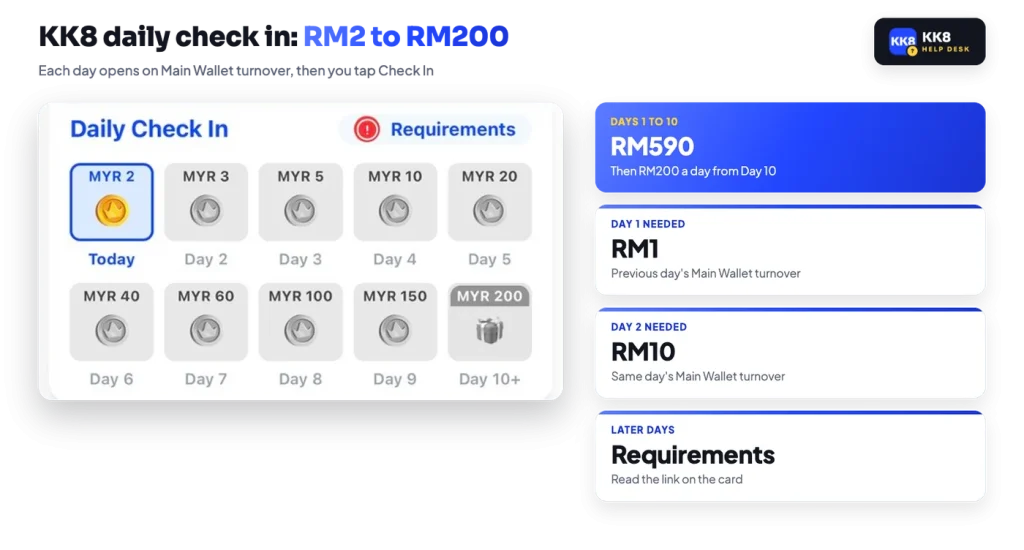
Every step on the ladder carries its own turnover condition, and you read it from the Requirements link on the check-in card. Two figures are documented. Day 1 opened on the previous day’s Main Wallet turnover of RM1. Day 2 asked for RM10 of Main Wallet turnover on the same day.
After that the thresholds rise with the day, and the platform only shows them inside your account. Later figures are not published outside the account, so treat Requirements as the only reliable figure for the step you are on. It also tells you whether the target is measured on the previous day or the current one, which changes when you need to play.
Good to know
The reward reaches your account only after you tap Check In. Meeting the turnover on its own credits nothing.
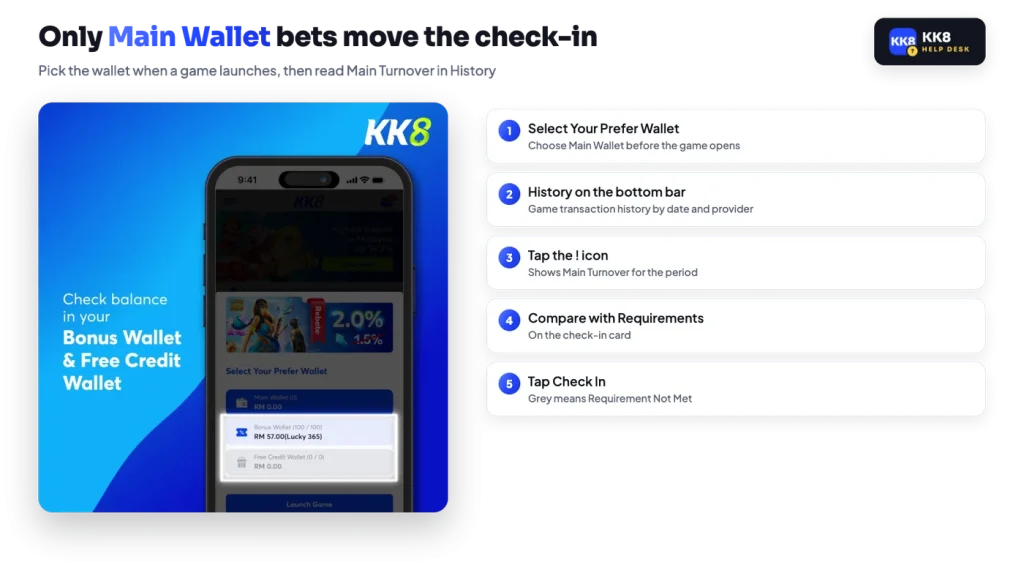
Open History from the bottom bar. That screen shows your game transaction history, filtered by date and by provider, and the ! icon on it displays your Main Turnover for the period you have selected. Compare that number with the figure under Requirements and you know exactly how much more play the day needs.
If the two numbers disagree with what you expected, the wallet you played from is the likely explanation. When you launch a game, the platform asks you to Select Your Prefer Wallet, and picking the Bonus Wallet or the Free Credit Wallet sends those bets against that bonus’s own turnover target instead. Only bets settled from the Main Wallet build Main Wallet turnover, which is what the check-in card measures.
One thing the platform does not publish is what happens to the sequence if you skip a day. We are not going to guess at a reset rule. If the card shows a day you did not expect, open Requirements to see where you stand, or raise it with Live Chat inside the account.
Three things can keep the Check In button grey, and none of them need support.
Work through those in order against the ! figure in History before anything else. If the numbers line up and the button still refuses, Live Chat is available 24/7 inside the platform and can look at the account itself. For general background on how the account and its wallets fit together, the platform overview sets out the structure.
Check-in is one of several standing mechanics on the account, and they are measured separately. The slot and live casino rebates are credited to the Main Wallet daily at 12:00 PM with a 1x turnover condition, and they only count Main Wallet bets, so bonus-funded play earns neither a rebate nor check-in progress. If you are deciding where your deposit should go first, the other daily bonuses set out the reload and rebate terms in full.
The VIP section runs its own monthly meters for Minimum Deposit and Minimum Turnover, shown against your current tier, and those meters are what move you from Bronze towards Silver. The thresholds are not published outside the account, and the VIP tiers guide explains what the screen does and does not tell you.
The ladder and the turnover figure for your current day both sit on the Check In card in the bottom bar of the account.